In order to use the 'page.faq' template, the theme will need to be published! The templates from which you can select are limited to the templates available in your currently published theme.
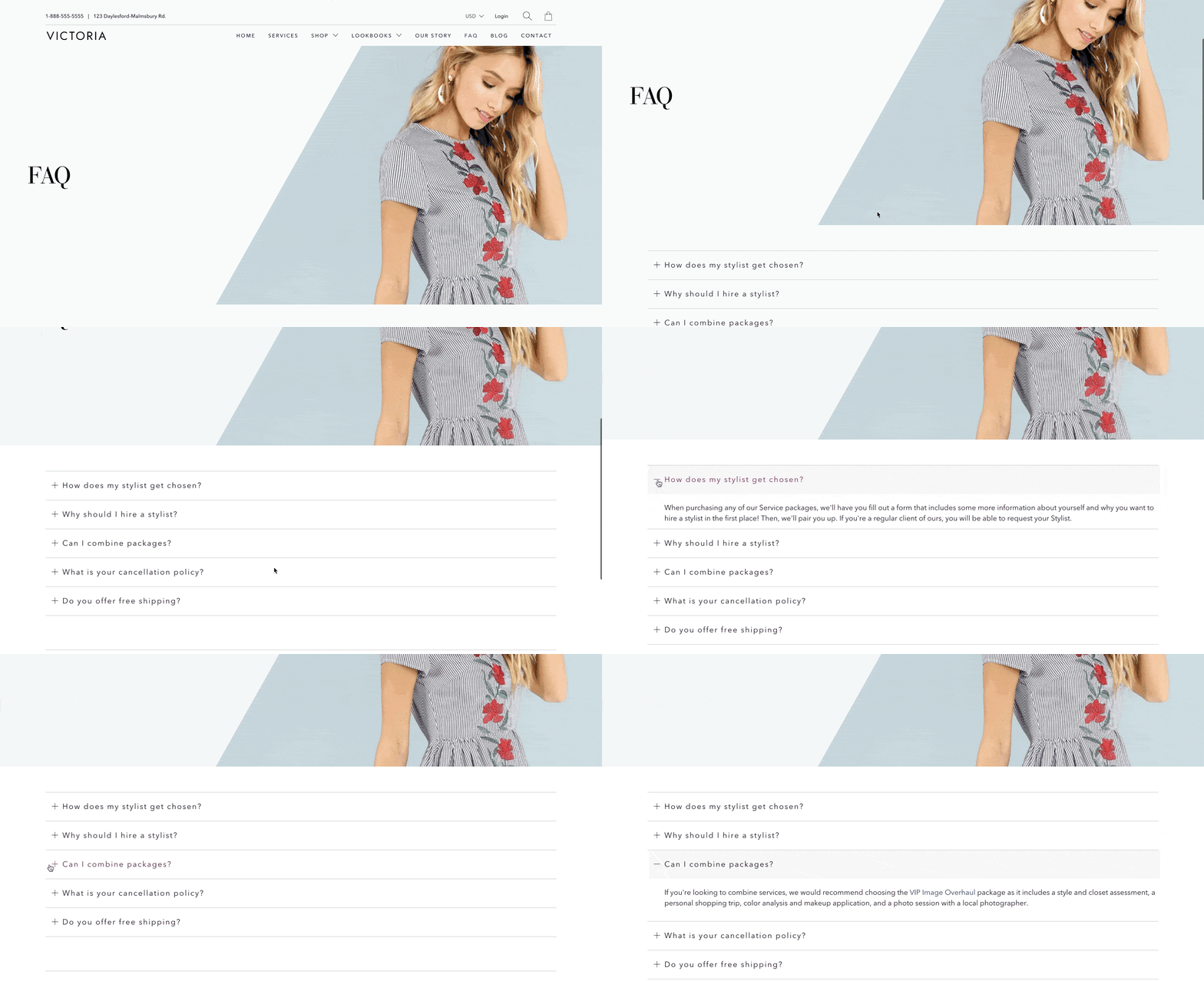
How to use the FAQ page template
The Artisan theme comes with a new template that makes it quick and simple to put together an FAQ page for your site!
Check out a live example in our Artisan Victoria demo shop
In This Article
Setting up the FAQ Template
Step 1: Make sure you have Artisan published to access the new page template.
Step 2: Head into Online Store > Pages > Add Page
Step 3: Select "page.faq" as the Template > under Template Suffix:
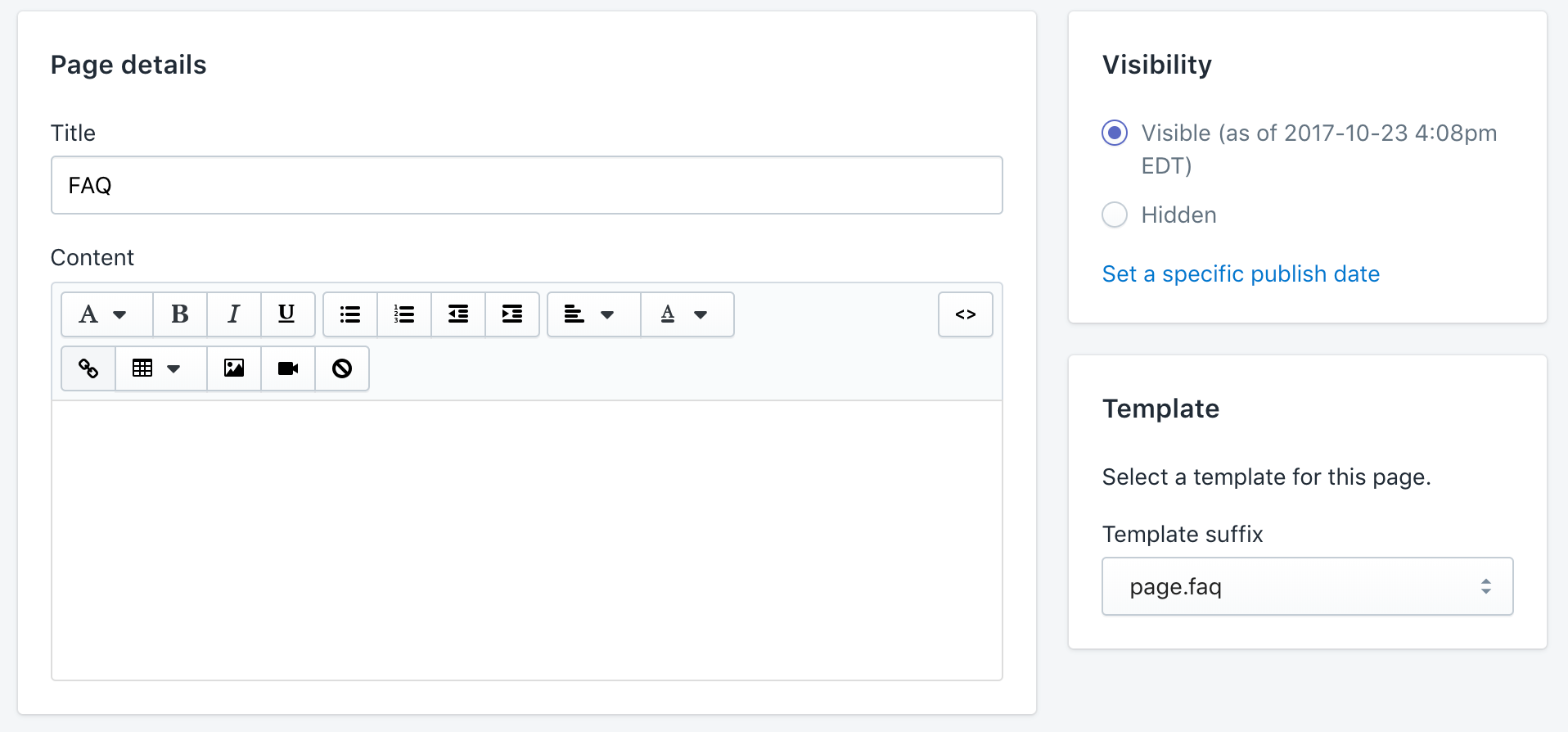
Step 4: Head into the Theme Editor (customize) and navigate to your FAQ page.
Configuring your FAQ Page
Page Settings
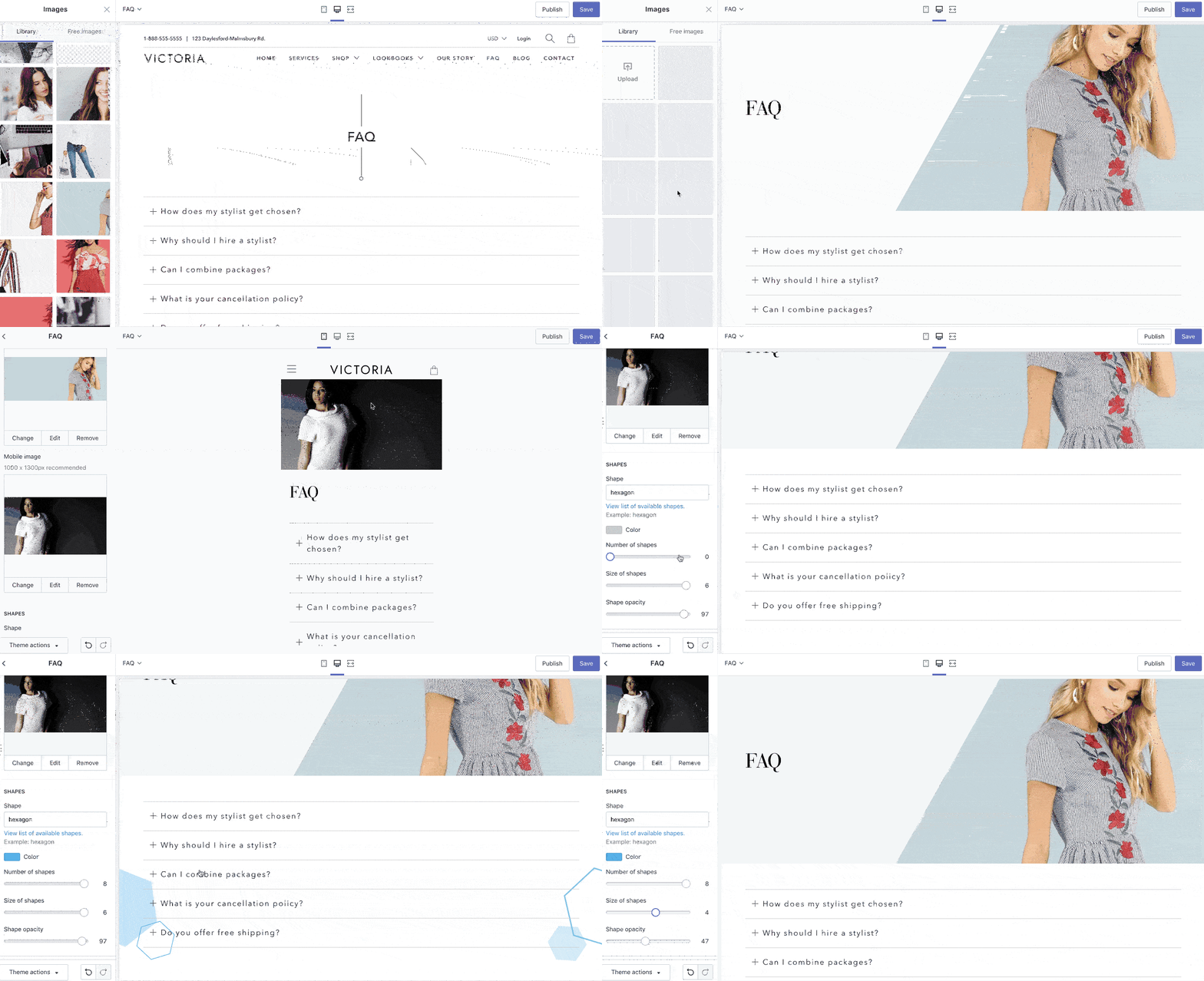
The Page Settings determine the overall look of the page. You can configure a banner image, mobile image, and shapes. All of these settings are optional.
The banner image will appear at the top of the page, with the page title on top. You can choose to add a 'banner overlay' on top of your image as well by going into Theme Settings > Banners. You can learn more about Artisan's banner overlay feature here.
The mobile image replaces the banner image on mobile. This is great if you want a portrait orientation image on mobile instead of landscape, or if you just want an entirely different image!
The shapes get added to the background and feature a slight parallax effect when scrolling. You can learn more about Artisan's shapes feature here.
Content Settings
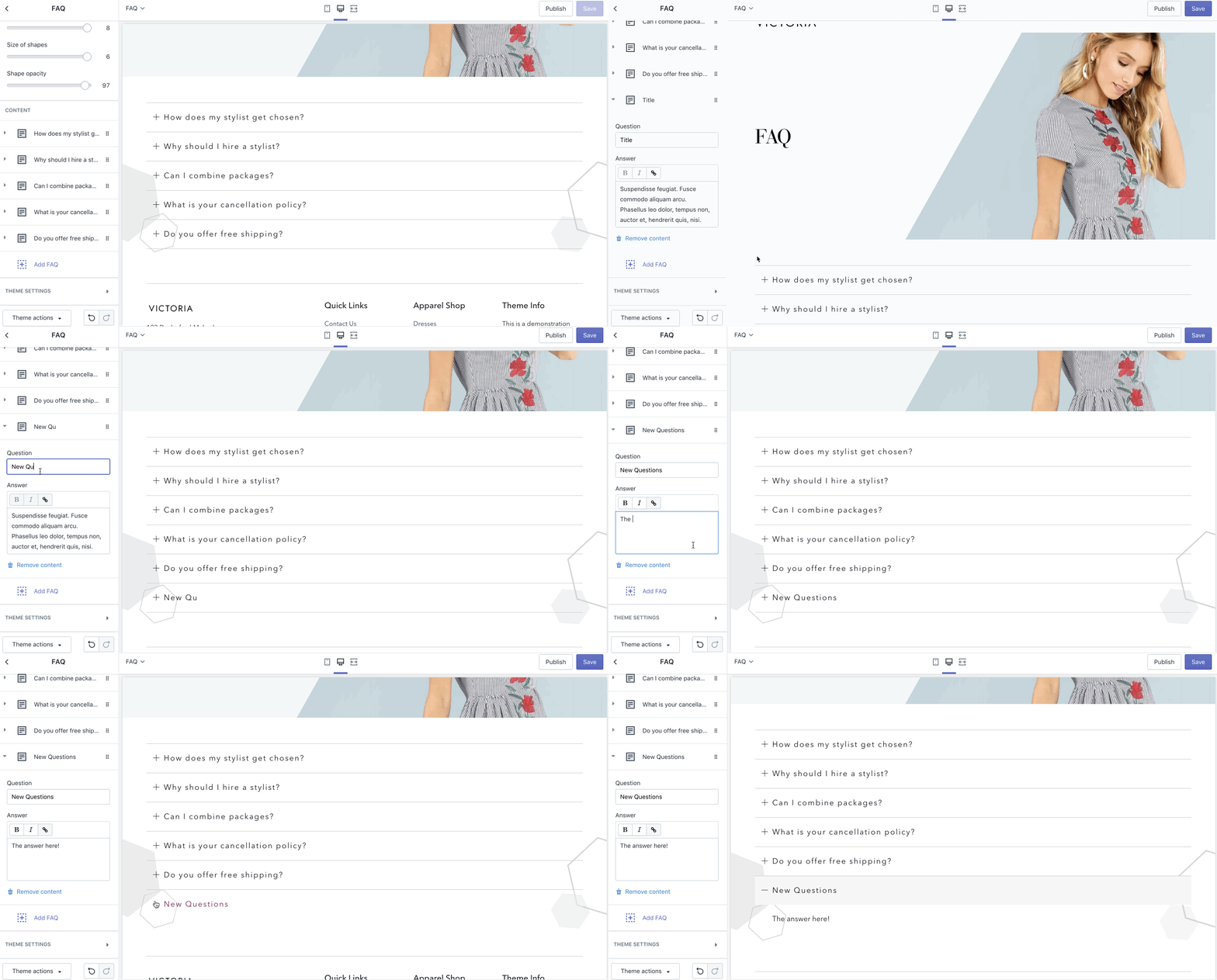
The Content Settings are where you configure your Frequently Asked Questions. Under Sections > FAQ > Content you can click 'Add FAQ':
* NOTE: May not be available on all sections, blocks or templates