Tabs are an HTML framework used to include more content within a limited space. Just like a file folder, product descriptions can be organized into tabs to save space and include more information.

Add the tab layout through the editor
This example will use products, but the same can be used in collections, pages and blog posts. In the Products admin, locate the product to edit.

Open the product editor, then scroll down to the Description rich text editor.
If you already have some description text in place, it would be worth backing it up in case the content is replaced by this modification.
In the top-right corner, select Show HTML
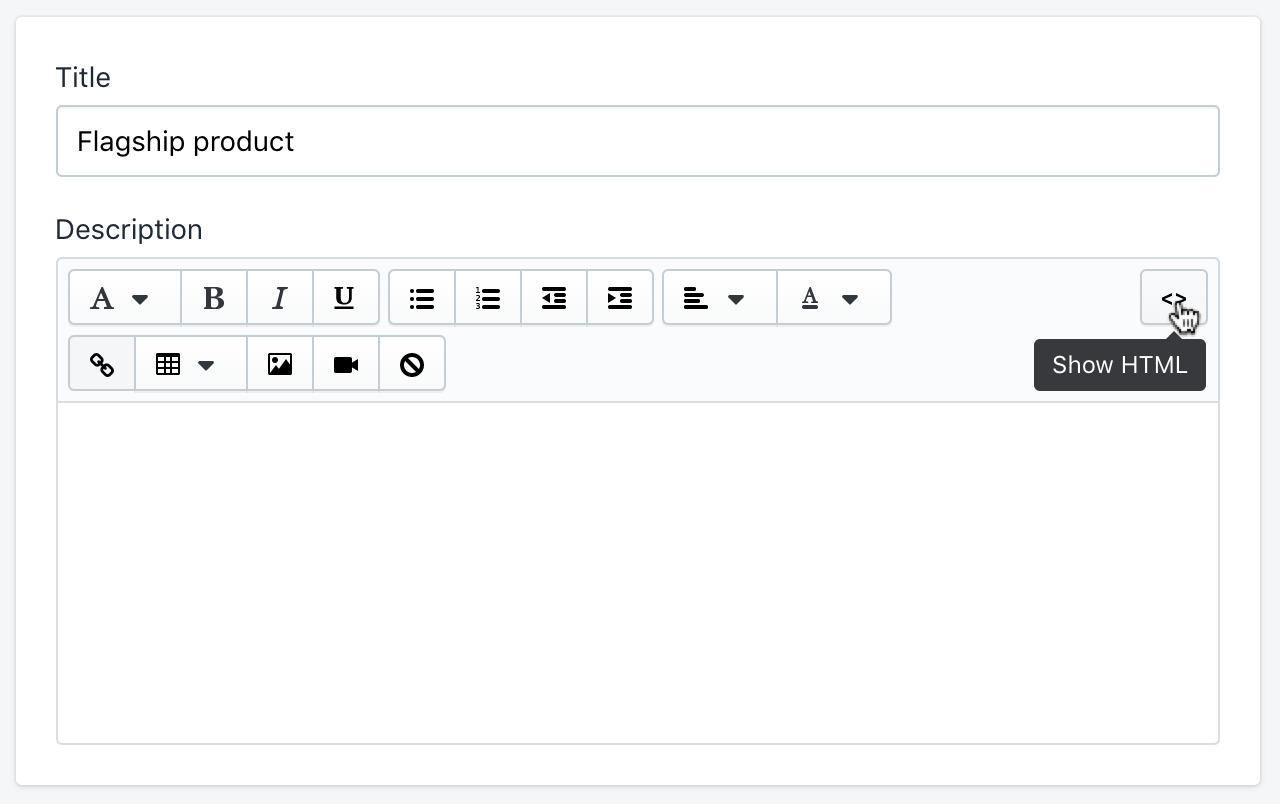
In this HTML view, paste this code snippet to the description:
<ul class="tabs">
<li class="active">Tab 1</li>
<li>Tab 2</li>
<li>Tab 3</li>
</ul>
<ul class="tabs-content">
<li class="active">
<p>Tab 1 content goes here.</p>
</li>
<li> <p>Tab 2 content goes here.</p> </li>
<li> <p>Tab 3 content goes here.</p> </li>
</ul>
Once this has been copied to the HTML view, click the same button to return to the RTE view (Show editor). The tabbed content will look like basic bullet points at first.
Begin replacing the Tabs and Tabs content portions with your product description content.
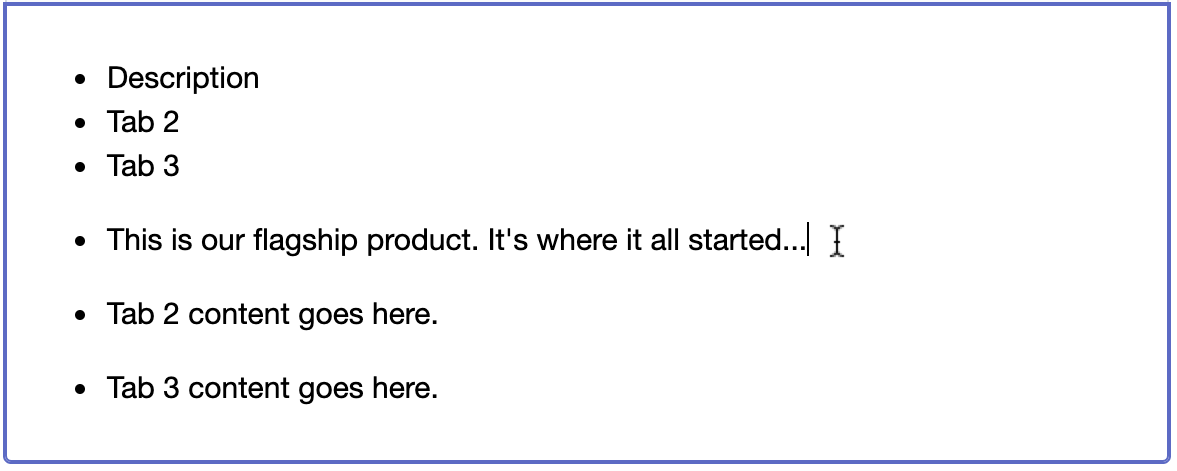
Tab 1, Tab 2, and Tab 3 serve as the labels for the tabs. Replace these with short titles for the tabbed categories.
In place of the Tab 1, 2, and 3 content goes here placeholders, add the copy.
Once the three tabs and their respective content have been filled, Save and preview the product page to see the tabs in action.
Code examples
Two tabs
<ul class="tabs">
<li class="active">Tab 1</li>
<li>Tab 2</li>
</ul>
<ul class="tabs-content">
<li class="active">
<p>Tab 1 content goes here.</p>
</li>
<li> <p>Tab 2 content goes here.</p> </li>
</ul>
Three tabs
<ul class="tabs">
<li class="active">Tab 1</li>
<li>Tab 2</li>
<li>Tab 3</li>
</ul>
<ul class="tabs-content">
<li class="active">
<p>Tab 1 content goes here.</p>
</li>
<li> <p>Tab 2 content goes here.</p> </li>
<li> <p>Tab 3 content goes here.</p> </li>
</ul>
Four tabs
<ul class="tabs">
<li class="active">Tab 1</li>
<li>Tab 2</li>
<li>Tab 3</li>
<li>Tab 4</li>
</ul>
<ul class="tabs-content">
<li class="active">
<p>Tab 1 content goes here.</p>
</li>
<li> <p>Tab 2 content goes here.</p> </li>
<li> <p>Tab 3 content goes here.</p> </li>
<li> <p>Tab 4 content goes here.</p> </li>
</ul>
Five tabs
<ul class="tabs">
<li class="active">Tab 1</li>
<li>Tab 2</li>
<li>Tab 3</li>
<li>Tab 4</li>
<li>Tab 5</li>
</ul>
<ul class="tabs-content">
<li class="active">
<p>Tab 1 content goes here.</p>
</li>
<li> <p>Tab 2 content goes here.</p> </li>
<li> <p>Tab 3 content goes here.</p> </li>
<li> <p>Tab 4 content goes here.</p> </li>
<li> <p>Tab 5 content goes here.</p> </li>
</ul>
Six tabs
<ul class="tabs">
<li class="active">Tab 1</li>
<li>Tab 2</li>
<li>Tab 3</li>
<li>Tab 4</li>
<li>Tab 5</li>
<li>Tab 6</li>
</ul>
<ul class="tabs-content">
<li class="active">
<p>Tab 1 content goes here.</p>
</li>
<li> <p>Tab 2 content goes here.</p> </li>
<li> <p>Tab 3 content goes here.</p> </li>
<li> <p>Tab 4 content goes here.</p> </li>
<li> <p>Tab 5 content goes here.</p> </li>
<li> <p>Tab 6 content goes here.</p> </li>
</ul>
Seven tabs
<ul class="tabs">
<li class="active">Tab 1</li>
<li>Tab 2</li>
<li>Tab 3</li>
<li>Tab 4</li>
<li>Tab 5</li>
<li>Tab 6</li>
<li>Tab 7</li>
</ul>
<ul class="tabs-content">
<li class="active">
<p>Tab 1 content goes here.</p>
</li>
<li> <p>Tab 2 content goes here.</p> </li>
<li> <p>Tab 3 content goes here.</p> </li>
<li> <p>Tab 4 content goes here.</p> </li>
<li> <p>Tab 5 content goes here.</p> </li>
<li> <p>Tab 6 content goes here.</p> </li>
<li> <p>Tab 7 content goes here.</p> </li>
</ul>
* NOTE: May not be available on all sections, blocks or templates